Connect
Find, trust, connect to, or reconnect with your GhostCalc.
First use the calculator to install CHATGPT and confirm it under PRGM. Then open the GhostCalc app to connect Bluetooth, enter Wi-Fi and an API key, test your first answer, and install updates only when needed.
CHATGPT is the name of the program that appears under the calculator's PRGM button. Your AI provider—such as OpenAI, Claude, Gemini, Grok, or DeepSeek—is chosen later in the GhostCalc app.
Install and open CHATGPT on the calculator first. After that, use the app for Bluetooth, Wi-Fi, API keys, notes, diagnostics, and updates. Save CMDS → Inject Program for later repairs.
The app and setup code work with GhostCalc hardware already installed inside a compatible calculator. They do not convert a stock calculator.
Use four matching batteries and keep the calculator powered during installation and updates.
You will need the current GhostCalc app starting in Step 2, after CHATGPT is on the calculator. On Android, or from a computer, use the web setup page in Chrome instead — it does the same Bluetooth setup, with no app required.
Have the exact Wi-Fi name, password, and a key from the AI provider you plan to use.
The setup code—sometimes called the password—is entered on the calculator's blank home screen, not in the PRGM editor and not in the phone app. Sending it tells the GhostCalc module inside the calculator to install its built-in CHATGPT program.
Press PRGM. If CHATGPT is already listed, skip to Confirm and open CHATGPT. If it is missing, return to the home screen and follow the steps below.
Quit any open menu or program, then clear old text.
Type 69420, press the store key, type the green letter P, then press ENTER. On a TI-84 Plus, P is ALPHA then 8.
Press 2nd 0 to open the CATALOG. Press LN to jump to the S entries, scroll to Send(, and press ENTER. Do not type the letters S-e-n-d yourself.
Type P, close the parenthesis, and press ENTER. The calculator should show Done.
Leave the calculator on the home screen for up to 15 seconds while the internal module transfers CHATGPT. No phone, USB cable, or computer is needed.
The home screen should look like this:
69420→P
                   69420
Send(P)
                    Done
Press PRGM and find CHATGPT.
Highlight CHATGPT, press ENTER to paste it onto the home screen, then press ENTER again to run it.
If the menu opens, CHATGPT is installed correctly. Menu items vary by model, so a Typing model may show fewer choices than a Vision model.
Return to a blank home screen, run 69420→P and Send(P) one more time, then wait the full 15 seconds. The app's Program Check / Repair and Inject Program controls are recovery options only after you connect in Step 2.
Now that CHATGPT is installed, use the app to configure the internal GhostCalc module. Older instructions may call the app AI84Base; its current name is GhostCalc.
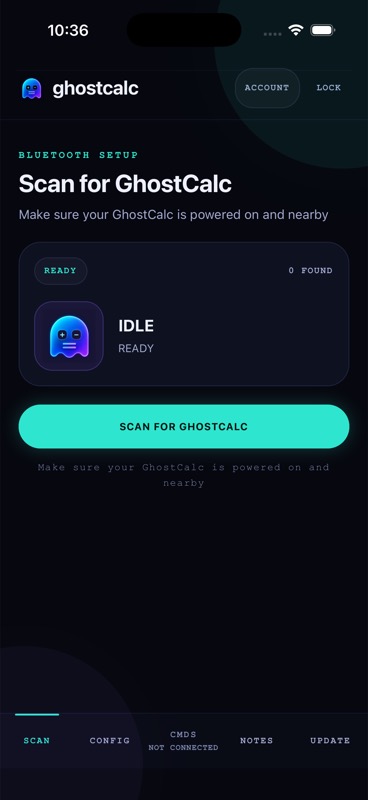
Download GhostCalc from the App Store. Complete onboarding, create the local six-digit app PIN, and allow Bluetooth. Allow Local Network access too if you use Vision Pro camera preview.
Place it within about 3 feet (1 meter) of the iPhone.
Open SCAN, tap SCAN FOR GHOSTCALC, then tap the discovered device card. Older firmware may appear as AI-84.
If the app shows Verify this GhostCalc, compare the displayed ID with your unit, then choose Matches — Trust.
After a successful connection, the app moves to CONFIG automatically.
Bluetooth lets the phone configure GhostCalc. Wi-Fi lets GhostCalc reach the selected AI provider and download updates. A Bluetooth connection does not mean Wi-Fi is connected yet.
Find, trust, connect to, or reconnect with your GhostCalc.
Use HOME, WI-FI, NETWORK, and KEYS for device settings and AI credentials.
See connection activity, run diagnostics, or request program repair. You do not need Inject Program for normal first setup.
Create and send supported notes after setup is complete.
Check the phone interface and model-matched internal firmware.
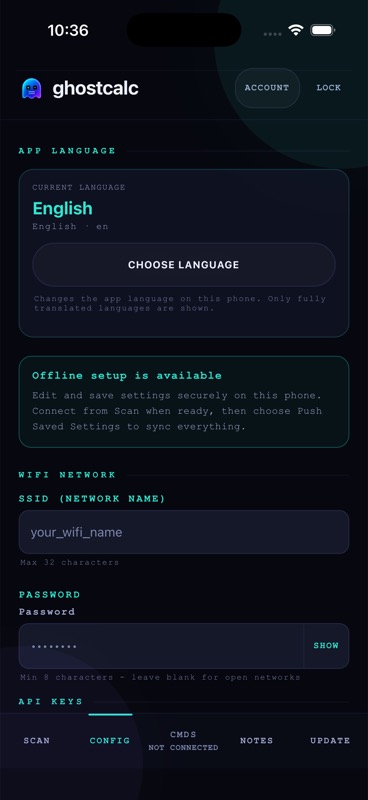
Stay connected over Bluetooth while completing this section. The current CONFIG screen saves fields automatically, so you do not need to look for an old Save All button.
Enter the exact Network name and Wi-Fi password. Capital letters and spaces matter. Use a 2.4 GHz network; hotel, school, or public networks that require a browser sign-in usually will not work.
Wait for CONFIG to show that Wi-Fi is connected. If it only says saved or no network, check the spelling and password, then try again.
Under API Keys & Prompt, choose the AI Provider offered for your model. Typing models may show only OpenAI; Vision models may offer more providers.
Get a key from OpenAI, Anthropic, Google AI Studio, xAI, or DeepSeek. Paste it into that provider's field; the app saves it automatically.
A successful test confirms the credential works. A ChatGPT Plus or Pro subscription does not include OpenAI API usage; API billing is separate.
Never paste a full API key into the GhostCalc website, Discord, an email, or a support message. If a key is exposed, revoke it with the provider and create a new one.
Menu choices vary slightly by GhostCalc model and firmware, but the first test follows the same path.
Press PRGM, highlight CHATGPT, then press ENTER twice.
If it reports that Wi-Fi is disconnected, open SETTINGS → CONNECT and wait for a connected response.
Choose CHAT → NEW CHAT, enter a simple test such as “What is 12 × 8?”, and submit it.
If the calculator returns an answer, installation, Wi-Fi, and the API key are all working.
Move through menu choices and lists.
Open a choice, confirm an action, or submit text.
Return to the previous screen or clear the current input.
Move between pages of a longer answer.
On many GhostCalc menus and result screens, DEL starts the emergency panic wipe and can remove CHATGPT. Use CLEAR to go back. If CHATGPT is removed, repeat Step 1.
GhostCalc has three different update types. Updating one does not automatically update the others.
Open the App Store, tap your profile picture, and install any update shown for GhostCalc. This updates the phone app only; it does not change the calculator program or internal firmware.
If CHATGPT is missing, repeat the calculator setup-code method in Step 1. After Bluetooth connects, CMDS → Program Check / Repair is an optional recovery path.
Use the model-matched Firmware OTA area in UPDATE. This updates the ESP32 hardware inside GhostCalc over Wi-Fi.
This can erase settings and uses board-specific files. Do it only when GhostCalc support gives you the exact recovery instructions for your unit.
Install four fresh matching batteries. Connect the app over Bluetooth and confirm GhostCalc Wi-Fi is connected.
The app should read the connected hardware and select the correct product family automatically. If the model is missing or wrong, stop and contact support.
Tap REFRESH FIRMWARE STATUS. Review the installed and available versions and any release notes.
Tap the button labeled UPDATE FIRMWARE for your detected model, confirm the prompt, and complete any physical approval instructions the app shows.
Keep the calculator powered, the app open, and Wi-Fi connected through Checking WiFi → Downloading → Installing → Reconnect now.
Return to SCAN, reconnect, open UPDATE, and refresh firmware status. Then launch CHATGPT and ask one short test question.
Vision, Typing, and test hardware use different firmware and layouts. If UPDATE reports a mismatch, unavailable release, or beta-only model, stop and contact support.
Choose Send( from the CATALOG instead of typing its letters. Make sure the finished command is exactly Send(P), with P entered using ALPHA 8.
Use four fresh batteries, return to a blank home screen, repeat 69420→P and Send(P) once, and wait the full 15 seconds without touching any keys.
Wake the calculator, move the phone within 3 feet, confirm iPhone Bluetooth permission is enabled for GhostCalc, close the app on any other nearby phone, then scan again.
Re-enter the exact network name and password in CONFIG → WI-FI. Use 2.4 GHz and avoid networks that need a browser login. A simple phone hotspot is a useful test.
Confirm Wi-Fi first, then confirm the key belongs to the selected provider and that billing or credits are active with that provider. Revoke and replace any key that may have been exposed.
Reconnect Bluetooth and Wi-Fi, use fresh batteries, then tap REFRESH FIRMWARE STATUS. Do not continue if the app cannot identify the exact hardware or reports a model mismatch.
Include your calculator model, GhostCalc model, app version, firmware version, hardware/support ID, the exact step that failed, and a photo of the error. Never send a Wi-Fi password, full API key, app PIN, or account password.